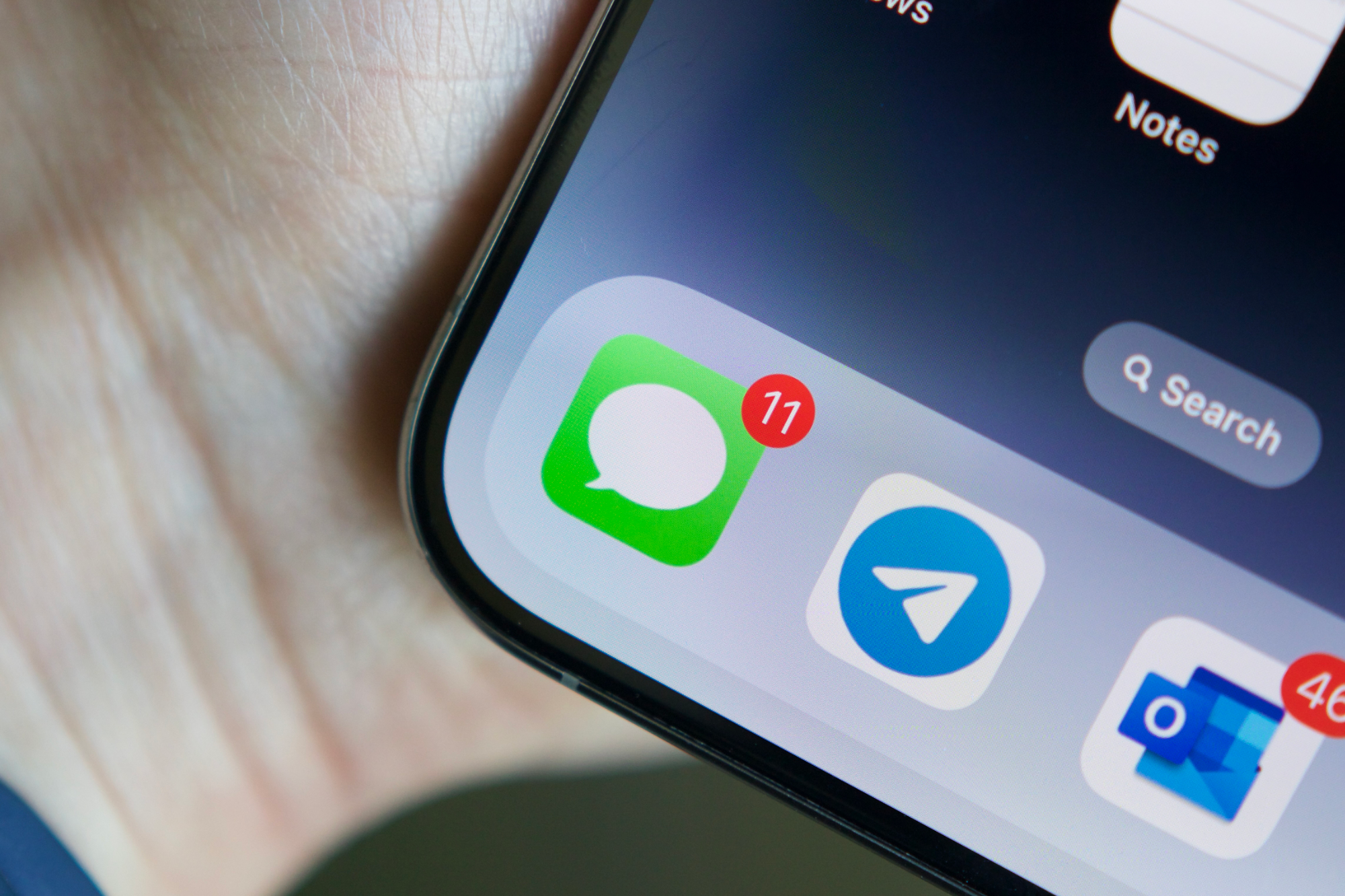
Discover how to take control of your messaging experience on iPhone. This detailed tutorial will show you how to block iMessage in multiple ways so you can reclaim your focus, protect your privacy, and nurture healthier digital habits.
Why Block iMessage?
Before diving into the methods, let's explore why you might want to block iMessage:
1. Minimize Distractions and Reclaim Productivity
We've all been there: You're in deep concentration when your iPhone lights up with an iMessage notification. One buzz leads to another, and your focus is derailed. By blocking iMessage (or certain contacts), you can protect your most productive hours from interruption.
2. Enhance Privacy and Security
Blocking iMessage empowers you to set digital boundaries. It can stop unwanted messages, spam, or intrusive senders from reaching you. Control who gets access to your device and enjoy a more secure, private messaging environment.
3. Cultivate Digital Well-Being and Balance
Sometimes, the best way to reduce screen time is to cut out instant messaging. Removing the constant flow of notifications opens space for more enriching offline experiences and face-to-face interactions.
4. Unleash Creativity and Focus on Deep Work
Blocking iMessage helps you eliminate the steady hum of digital chatter. This leaves you free to work on tasks that require your undivided attention—be it writing, painting, solving complex problems, or brainstorming your next big idea.
5. Nurture Meaningful Connections
Paradoxically, blocking iMessage can improve the quality of your social interactions. By choosing when and how you engage, you can have more focused, genuine conversations—free from the noise of constant pings.
Method 1: Block Unknown & Spam Contacts
This method helps you filter out messages from unknown senders and potential spam, keeping your inbox clean.
Steps to Enable Unknown Sender Filtering:
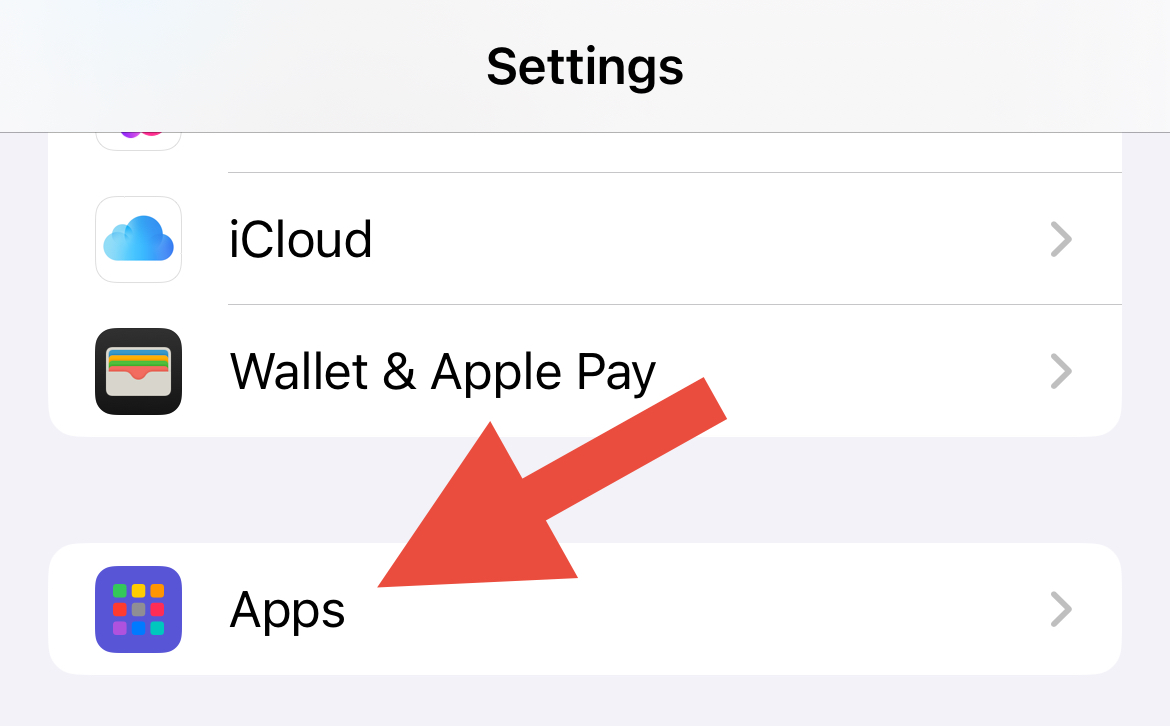
- Open Settings on your iPhone
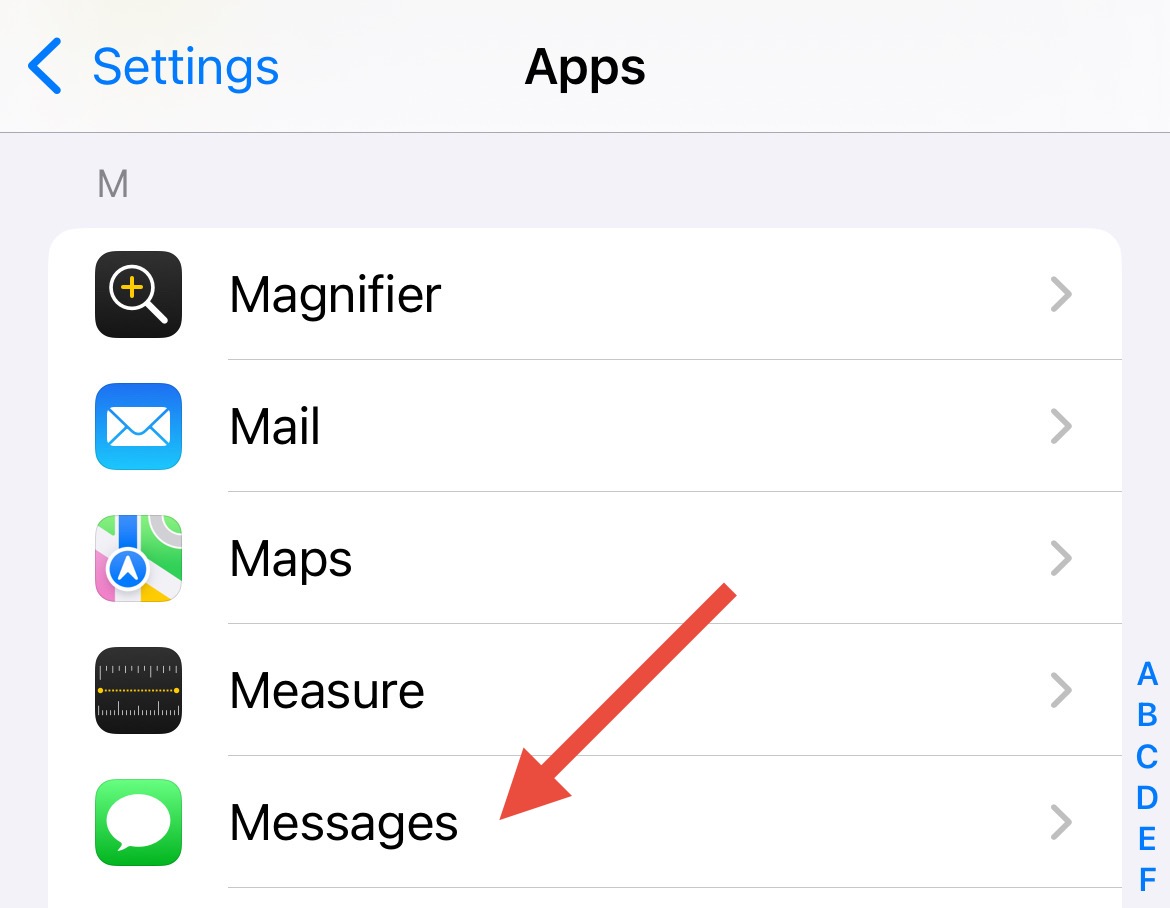
- Tap on Apps and scroll to find Messages
- Select Messages from the app list
- Find "Unknown & Spam" section
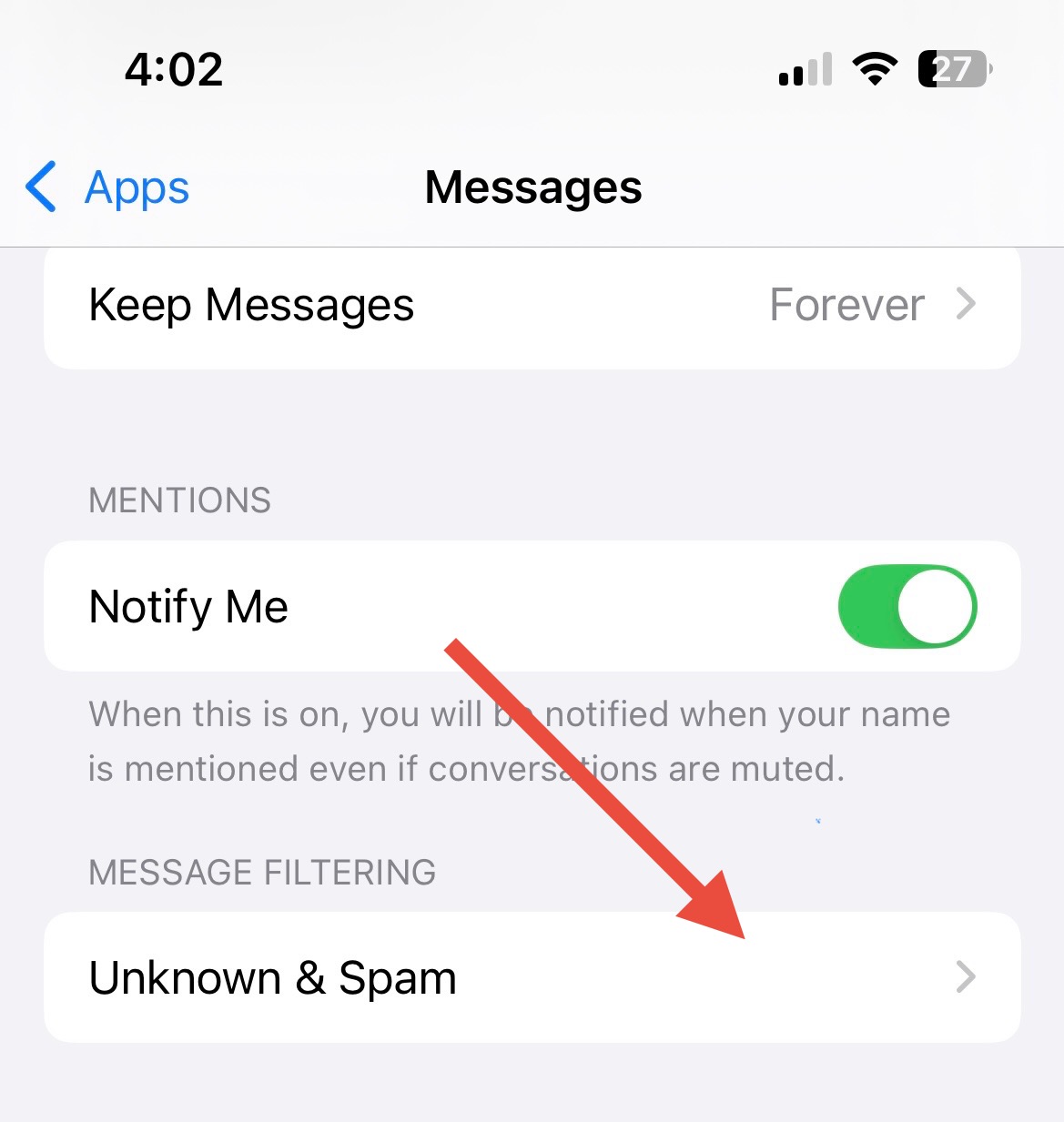
- Toggle on "Filter Unknown Senders"
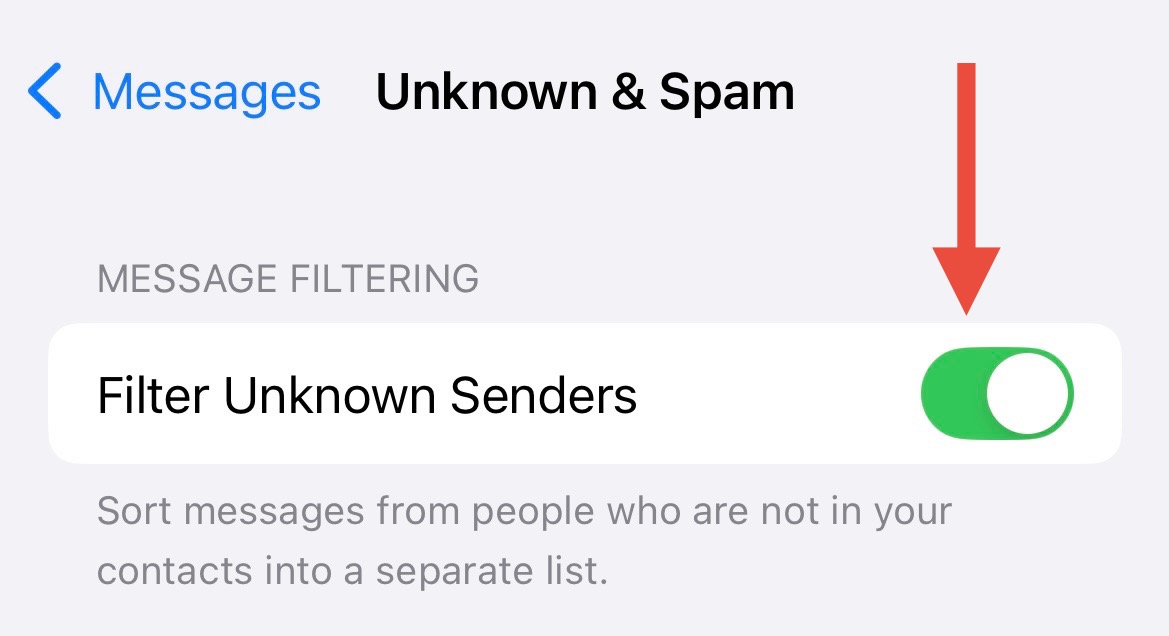
Pro Tip: When enabled, messages from unknown senders will be separated into a different tab, reducing interruptions while still allowing you to check them when convenient.
Method 2: Block Specific Contacts
Perfect for blocking individual contacts who you don't want to receive messages from.
Steps to Block Individual Contacts:
- Open Settings → Apps → Messages
- Tap "Blocked Contacts"
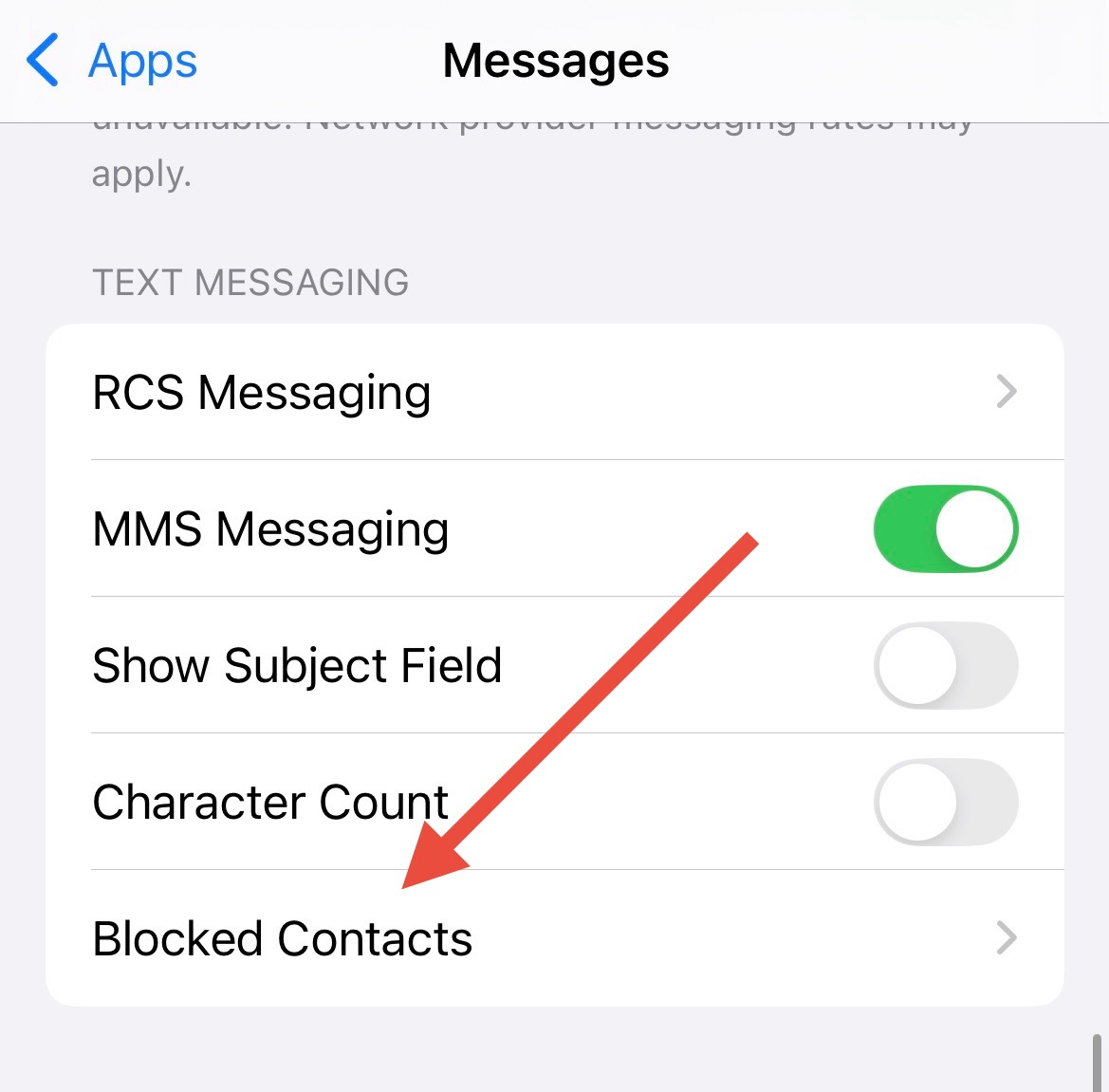
- Tap "Add New" to block a contact
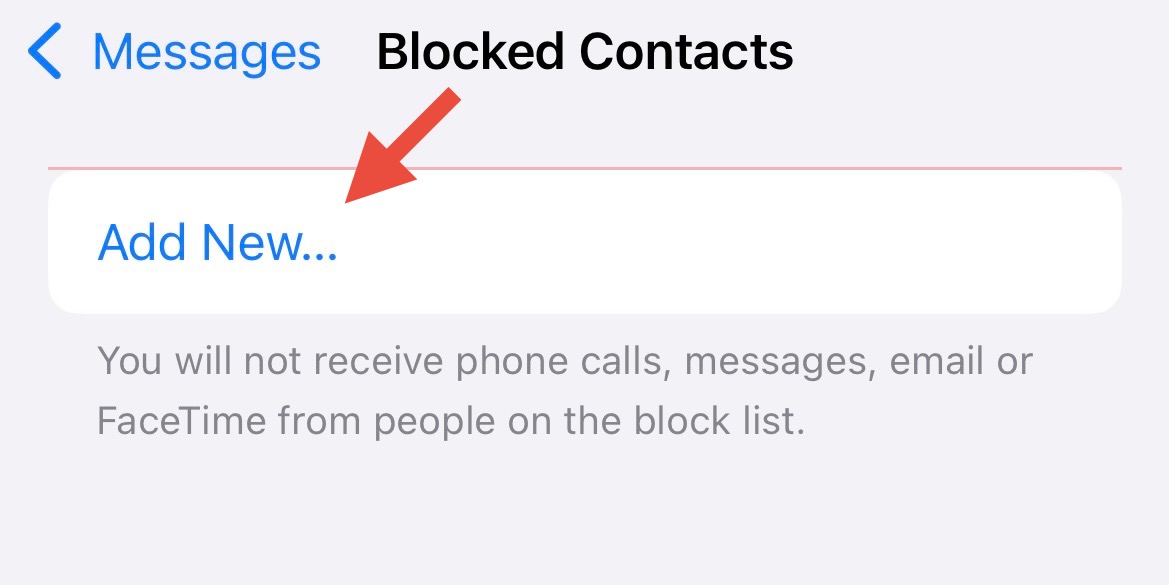
- Select the contact you want to block from your contact list
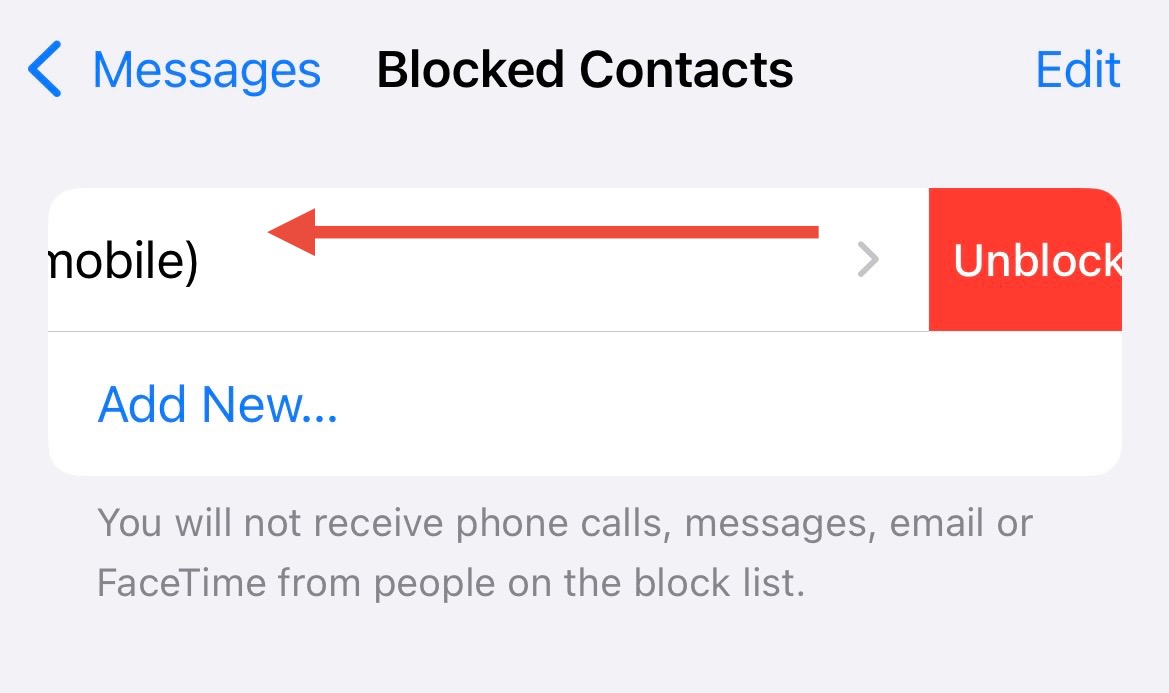
Note: To unblock a contact, return to Blocked Contacts, swipe left on the contact, and tap "Unblock".
Method 3: Disable iMessage Notifications
Keep iMessage active but silence all notifications for a distraction-free experience.
Steps to Disable Notifications:
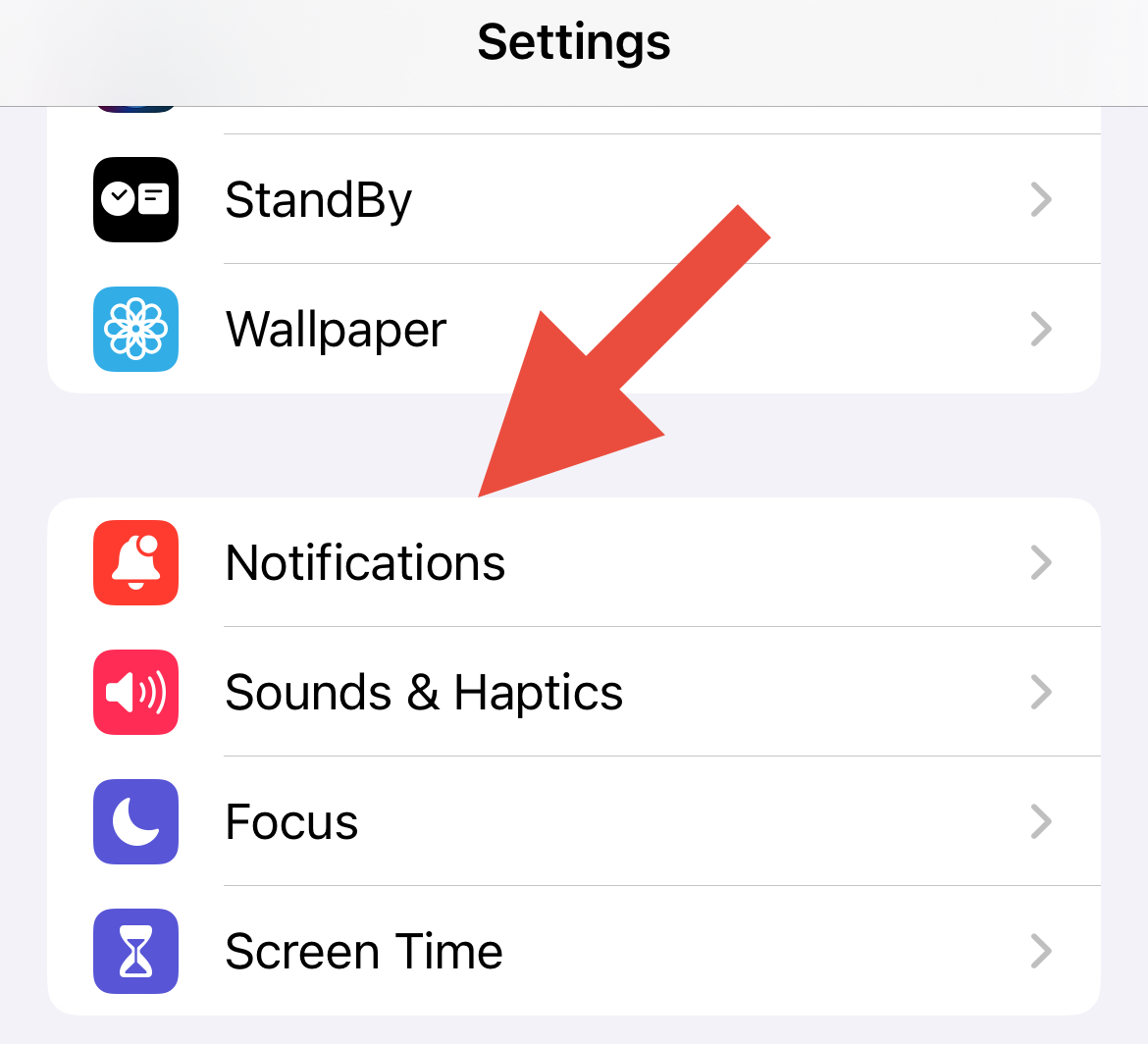
- Go to Settings → Notifications
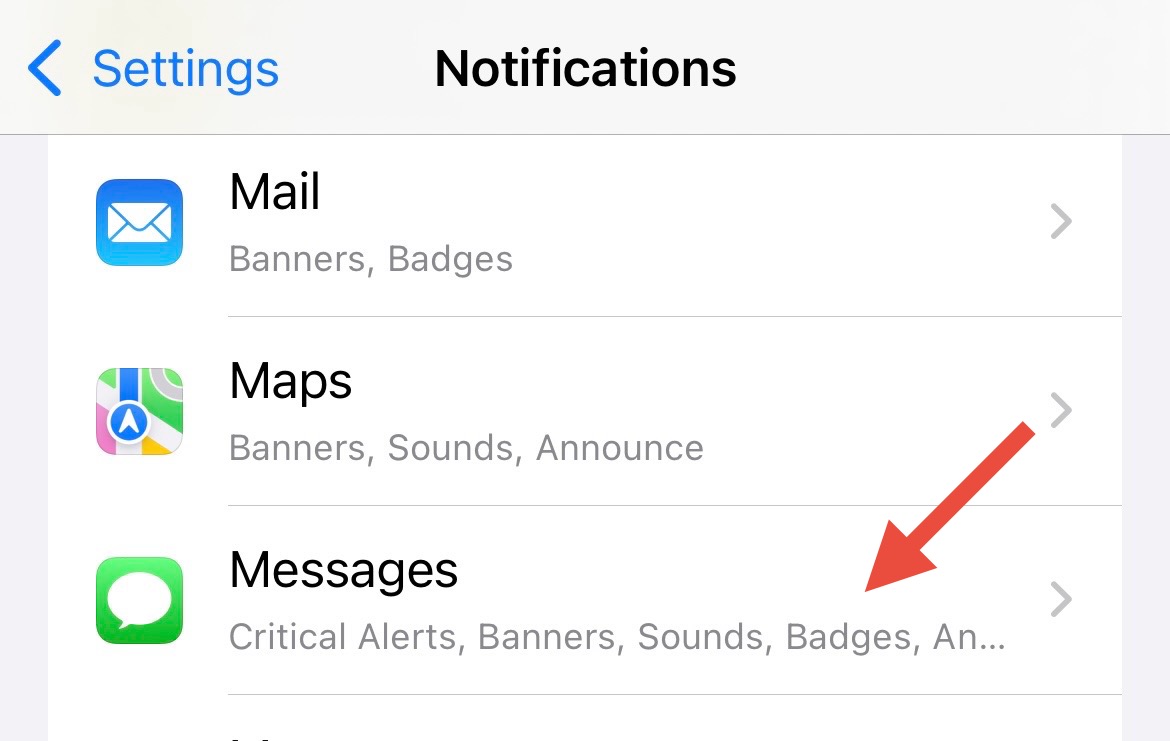
- Select Messages from the app list
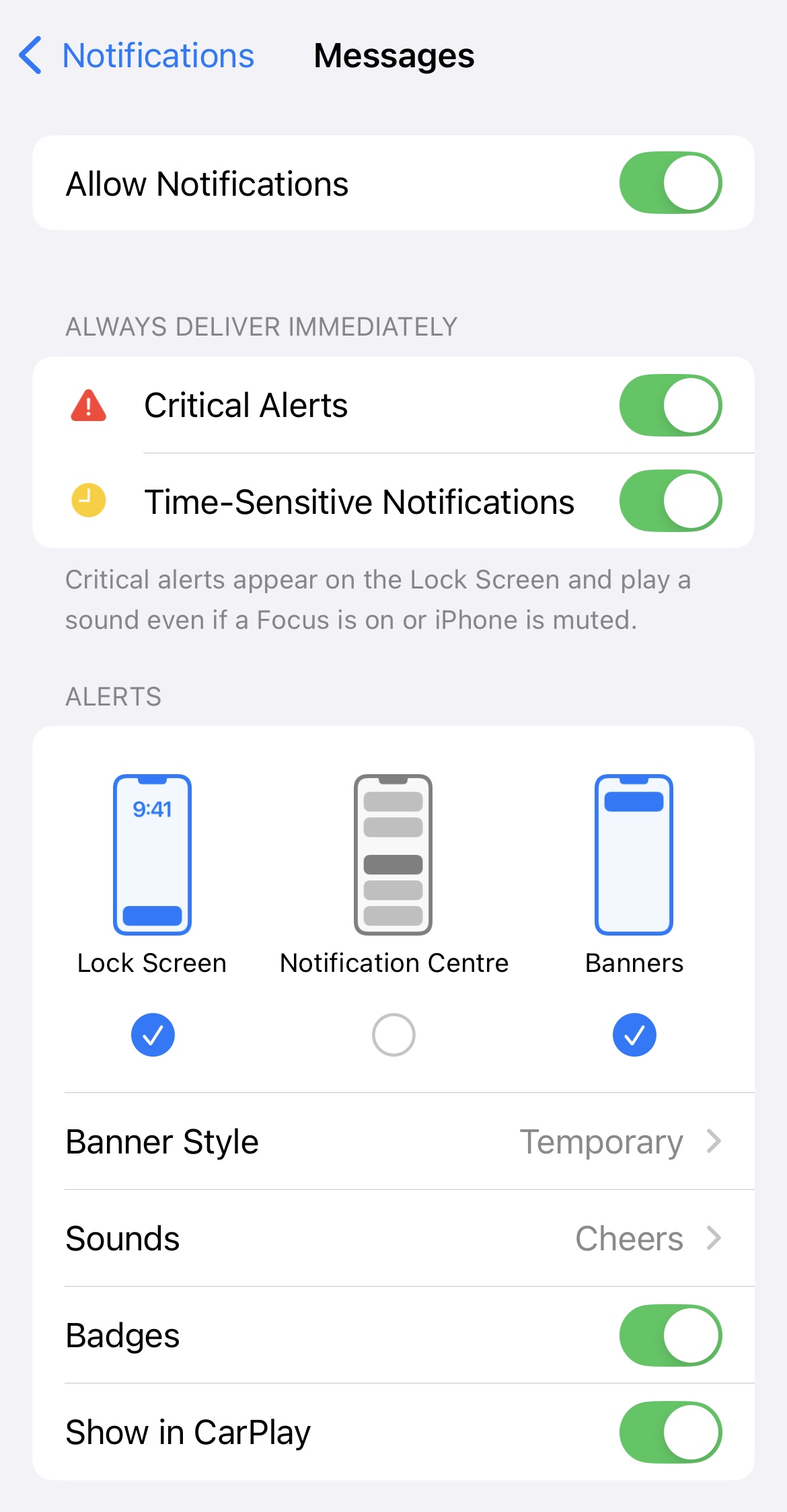
- Toggle off "Allow Notifications" or customize specific notification types
Method 4: Use Screen Time Communication Limits
Apple's Screen Time feature provides powerful controls over who can contact you and when.
Setting Up Communication Limits:
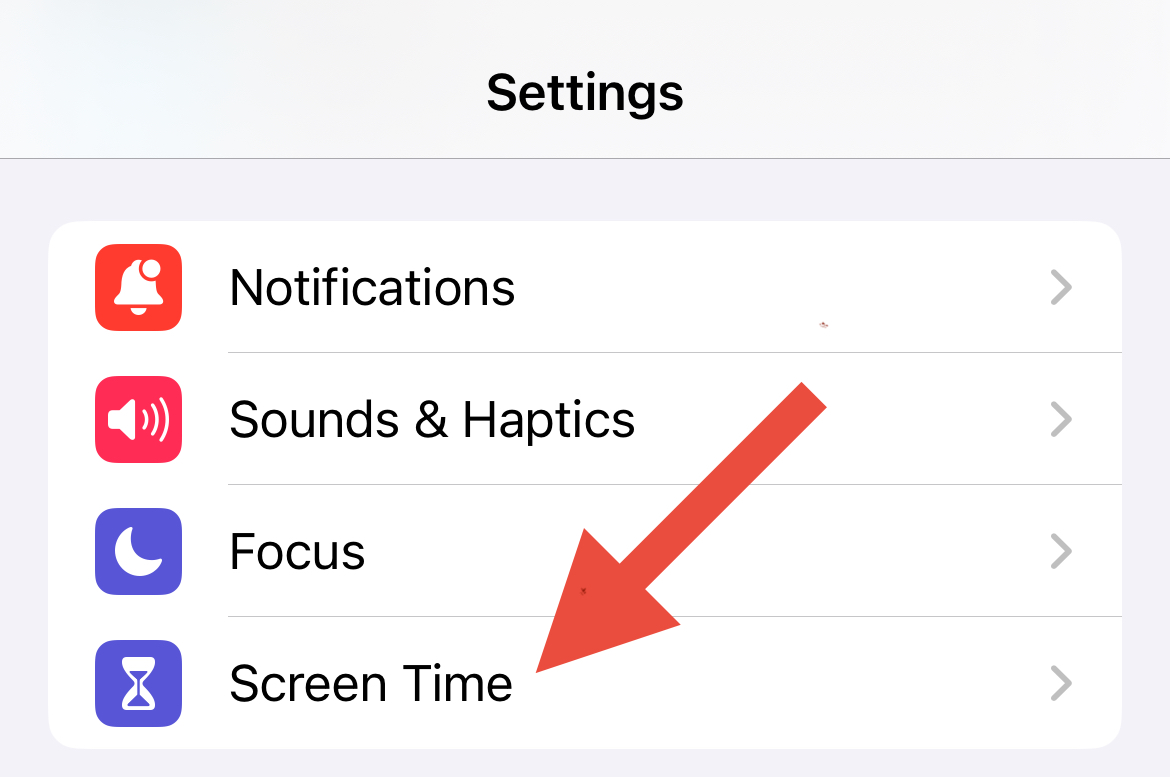
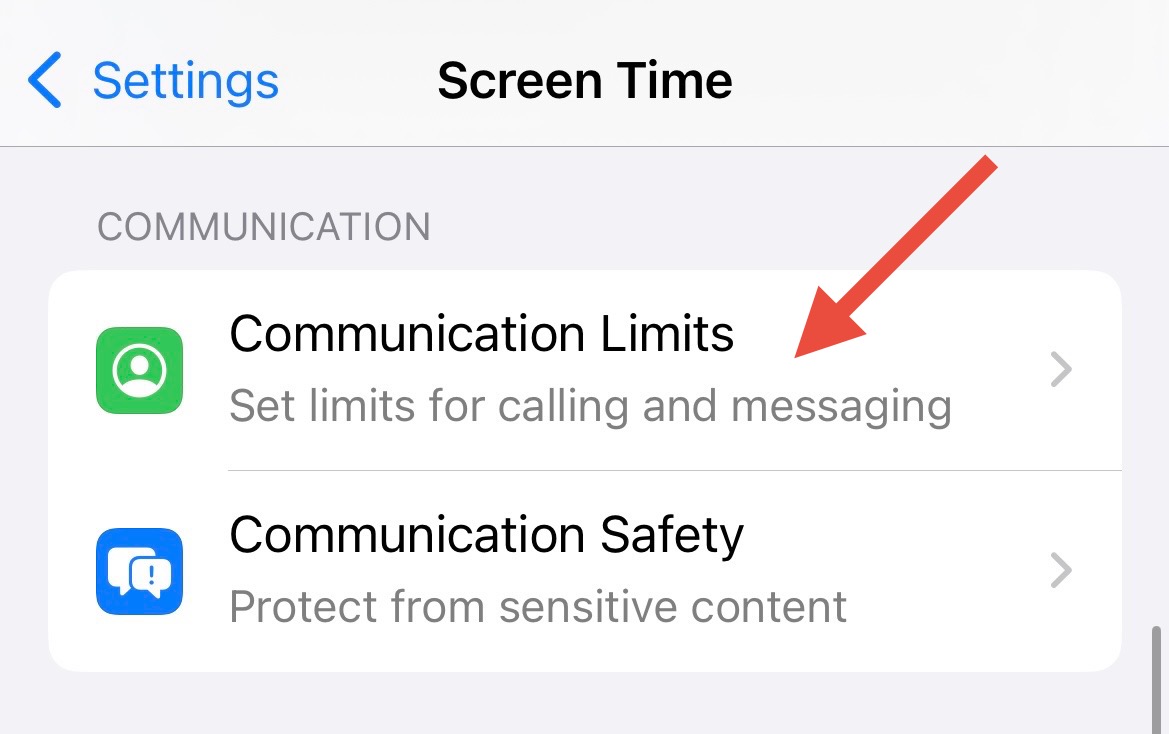
- Open Settings → Screen Time
- Tap "Communication Limits"
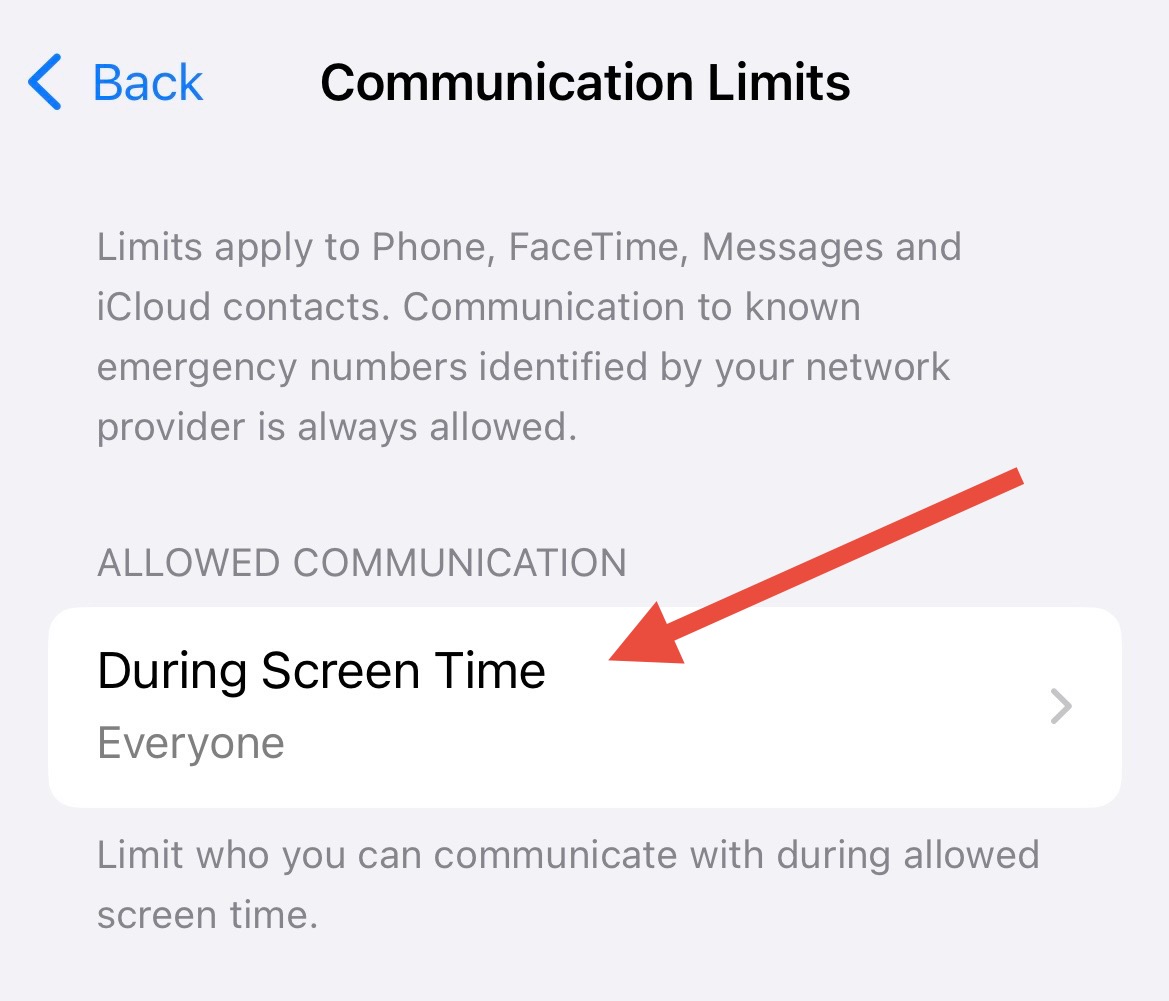
- Configure "During Screen Time" settings
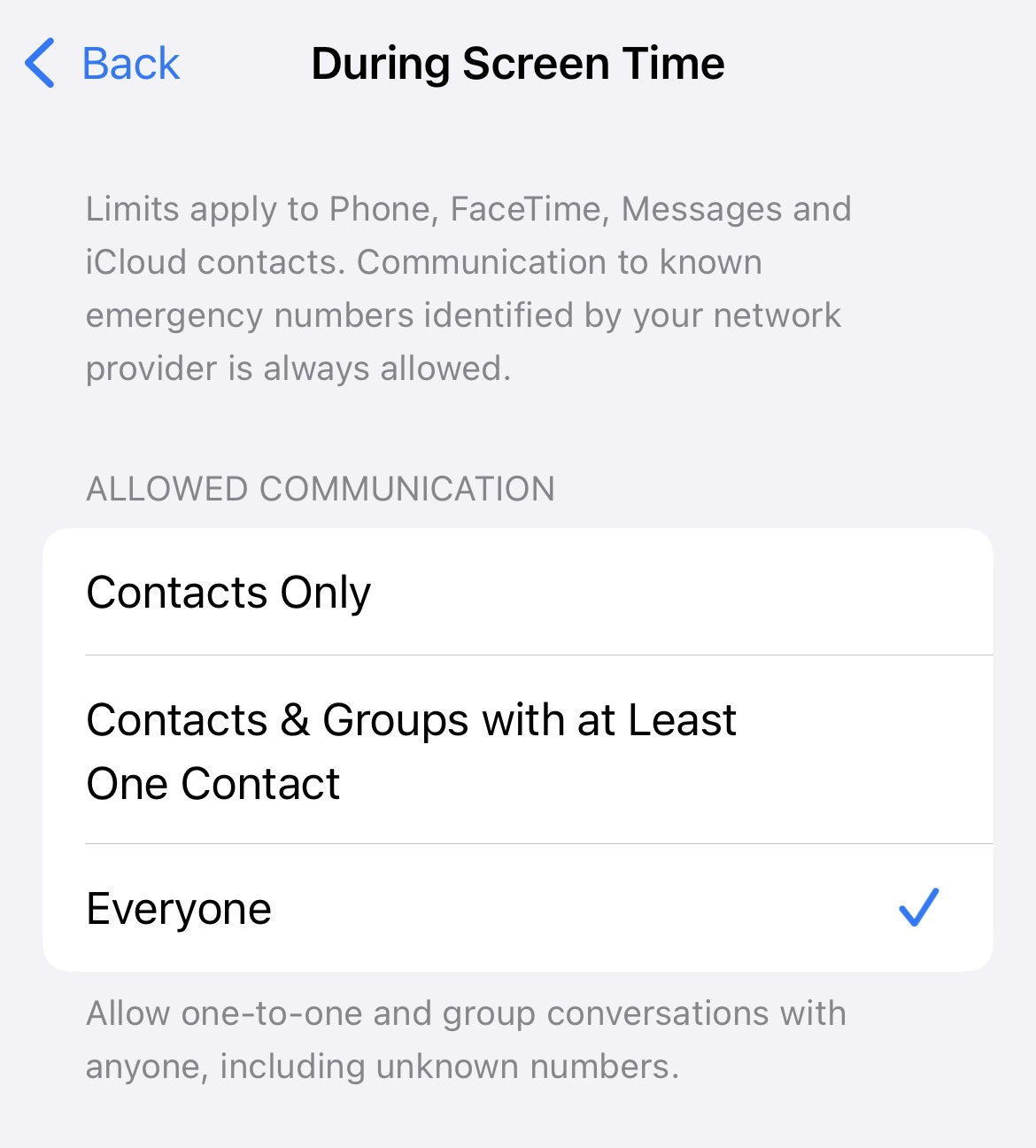
- Set "During Allowed Screen Time" to "Contacts Only" or "Specific Contacts"
Method 5: Completely Turn Off iMessage
The nuclear option: completely disable iMessage to ensure no messages come through.
Steps to Disable iMessage:
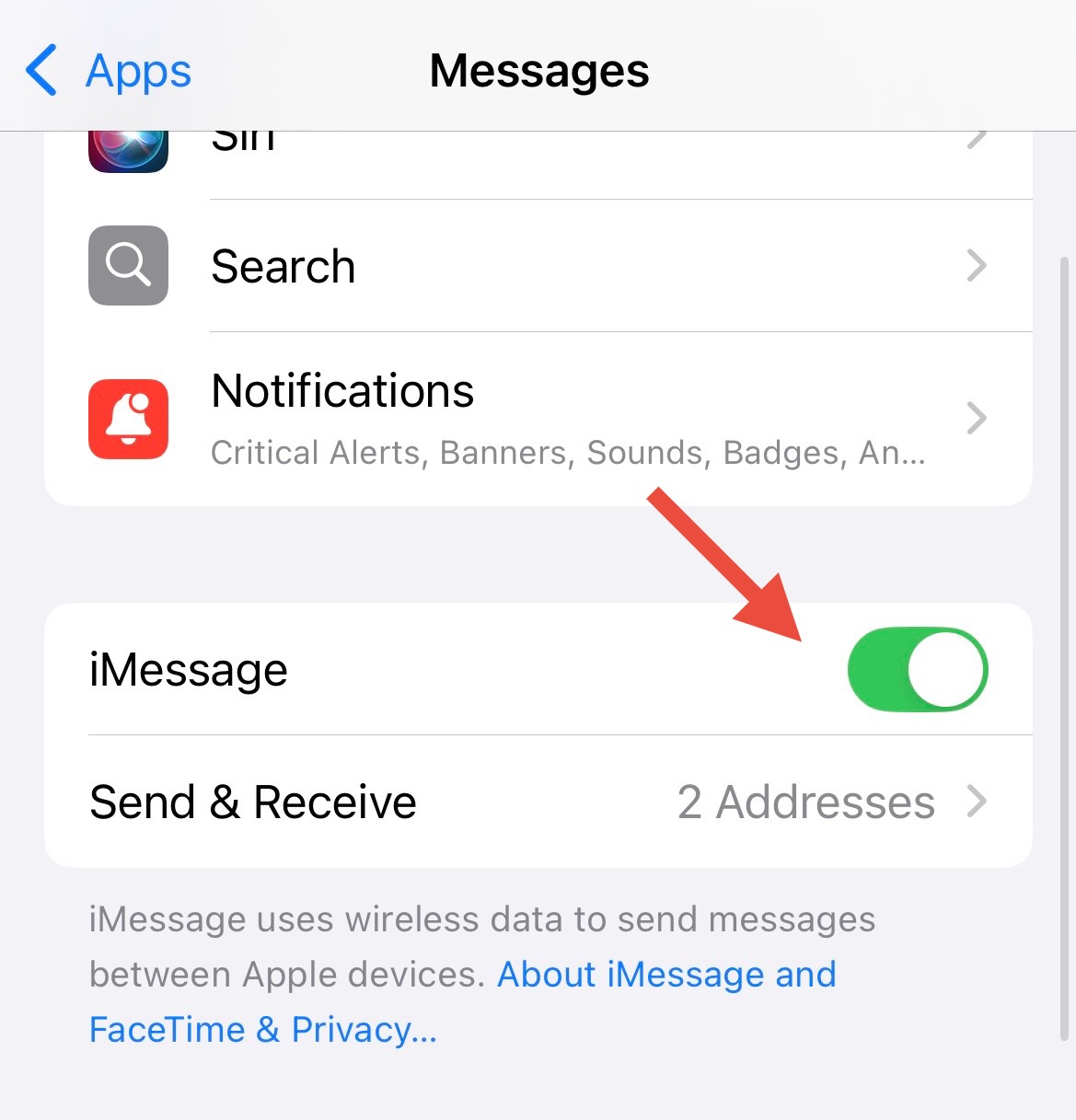
- Go to Settings → Apps → Messages
- Toggle off "iMessage" at the top
- Confirm when prompted
Warning: Disabling iMessage will prevent you from sending or receiving iMessages. Standard SMS text messages will still work if your plan supports them.
Method 6: Using Atten for Advanced Control
For the ultimate control over your messaging apps, Atten provides scheduled blocking with strict mode protection.
Why Atten is the Best Solution:
- Schedule-based blocking - Block Messages during work hours or bedtime
- Strict Mode - Prevents you from changing settings during active sessions
- Quick Block Widget - Instantly block Messages from your home screen
- Cross-device sync - Settings sync across iPhone, iPad, and Mac
- Flexible breaks - Allow emergency access when truly needed
Best Practices for Message Blocking
Start Gradually
Begin by blocking messages during your most productive hours, then expand as you build the habit.
Communicate Your Boundaries
Let important contacts know about your message-free periods to set expectations.
Use Do Not Disturb
Combine message blocking with Focus modes for comprehensive distraction control.
Review Regularly
Check blocked messages periodically to ensure you don't miss anything important.
Troubleshooting Common Issues
Messages still coming through after blocking?
Ensure the contact is blocked in both Messages and Phone settings. Some contacts may message from multiple numbers or email addresses.
Can't find Screen Time settings?
Screen Time must be enabled first. Go to Settings → Screen Time and tap "Turn On Screen Time" if you haven't set it up yet.
Need to allow certain contacts during blocked periods?
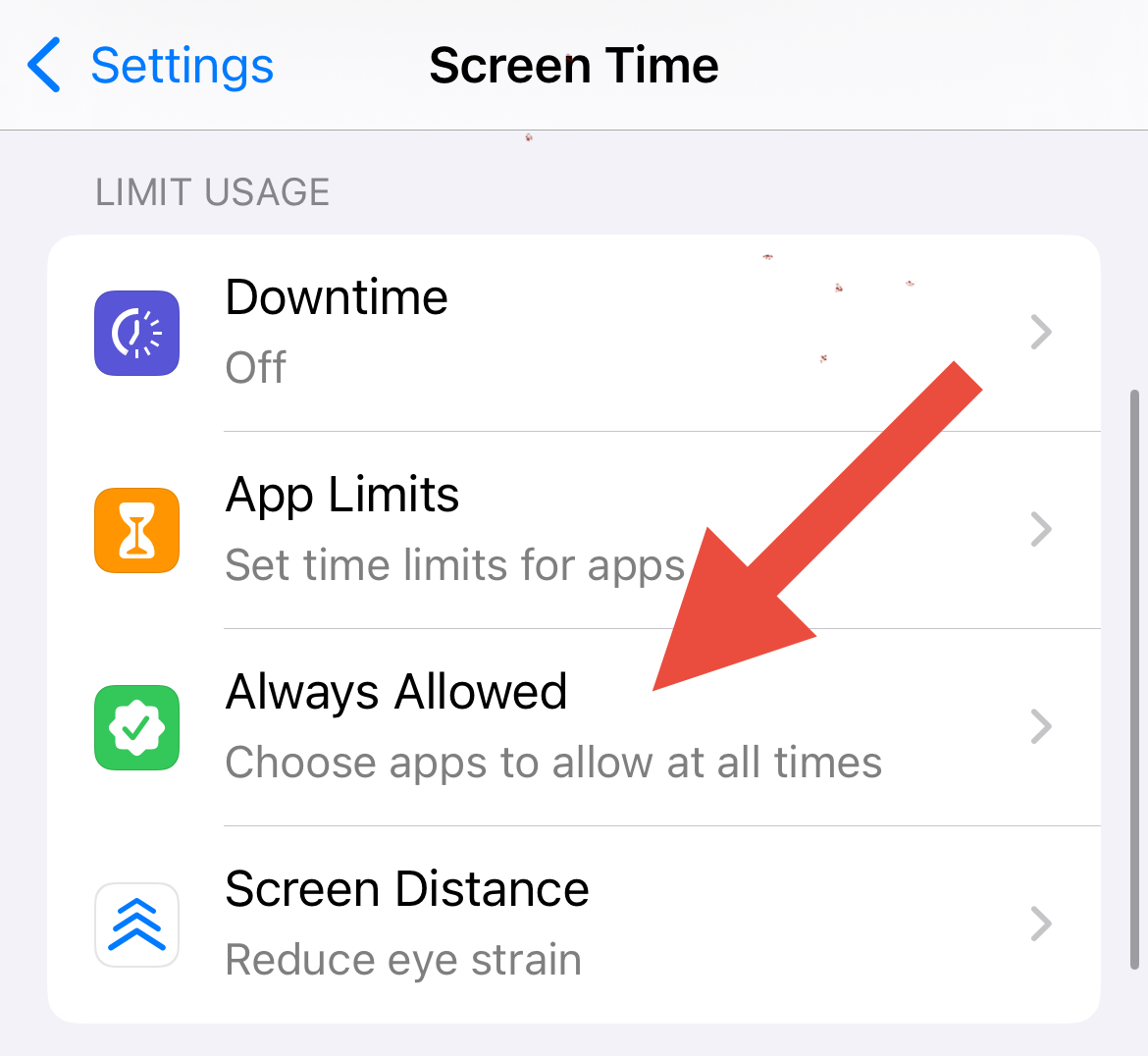
Use Screen Time's "Always Allowed" feature to permit specific contacts even during restricted times. Go to Screen Time → Always Allowed → Contacts.
Take Control of Your Digital Life
Ready to create healthier messaging habits? Download Atten for the most comprehensive message blocking solution available.
Get Atten Free